Scan the message you choose
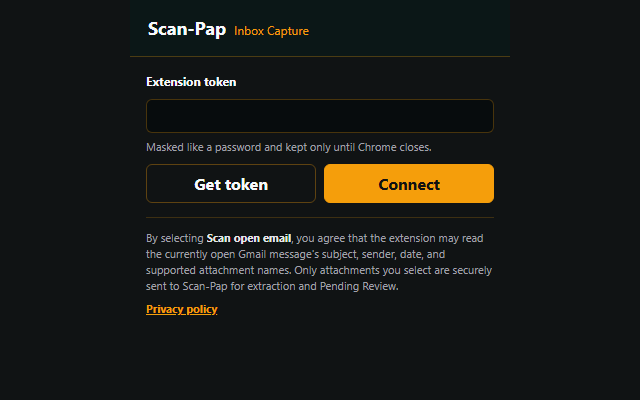
The extension runs when you open it and select Scan open email. It does not scan your inbox in the background.
AI receipt, invoice and expense document scanner.
GMAIL RECEIPT & INVOICE SCANNER
Select supported attachments from the Gmail message already open in Chrome. Scan-Pap extracts the bookkeeping details and sends each document to Pending Review.
FROM INBOX TO REVIEW
The extension runs when you open it and select Scan open email. It does not scan your inbox in the background.
Select receipt, invoice or bill attachments supplied as PDF, PNG, JPEG or WebP files.
Confirm or correct the customer, category, date, amount and other extracted details before the transaction is saved.
| Document | Selected receipt, invoice or bill |
|---|---|
| Source | Gmail message context |
| Fields | Vendor, date, total, tax and available line items |
| Status | Waiting for your review |
The selected source document remains connected to the extracted transaction for comparison and later review.
The extension stores the Scan-Pap connection token in Chrome session storage and clears it when Chrome closes.
Choose the correct customer before importing so documents arrive in the right bookkeeping workflow.
Extraction is a starting point. Scan-Pap keeps human confirmation between the inbox attachment and the saved transaction.
Open the Gmail message, open Inbox Capture, choose the customer, select Scan open email, select the supported attachments and choose Import selected.
Inbox Capture supports PDF, PNG, JPEG and WebP attachments.
No. It reads the Gmail message currently open only after you choose to scan it, and imports only the supported attachments you select.
Each selected file goes to Scan-Pap Pending Review, where you can verify extracted details before saving the transaction.